
Exams allow unlimited attempts by default. However, if Limit Attempts is enabled and a value is set for Max Attempts, students will be locked out of the exam after they reach the maximum number of attempts.
Certain circumstances may require an administrator to reopen the exam.
Follow the steps below to allow a student back into a closed exam:
Navigate to the course and select Students from the course menu.
Use the search bar to find the student by name or email address
Select the student from the results to view the Manage Student screen.
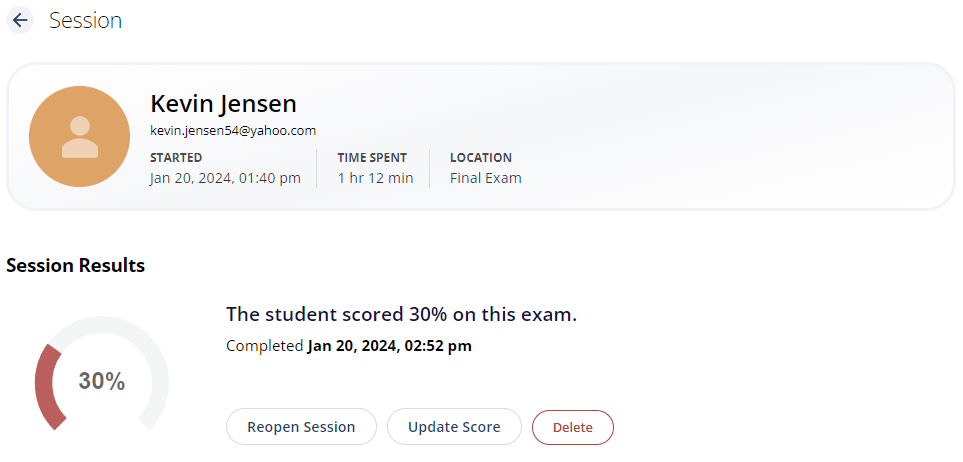
Under Curriculum Progress, find the quiz or exam you wish to reopen. Click on the name of the activity to view the student's session results.
From here, you can reopen the session, update the score, or delete it. Select Reopen Session to allow the student to return to the quiz or exam.