

Administrators can edit user email addresses and display names, send system-generated messages, grant/revoke course access, and see platform activity such as total usage, community posts, reporting history, and more from the Manage User dashboard.
Please note that some user management tools may be inaccessible due to your role/permissions.
Follow these steps to manage a user account:
Navigate to Users>Users on the main menu.
Use the search bar to find accounts by name or email address.
Select the user from the results list to view the Manage User screen.
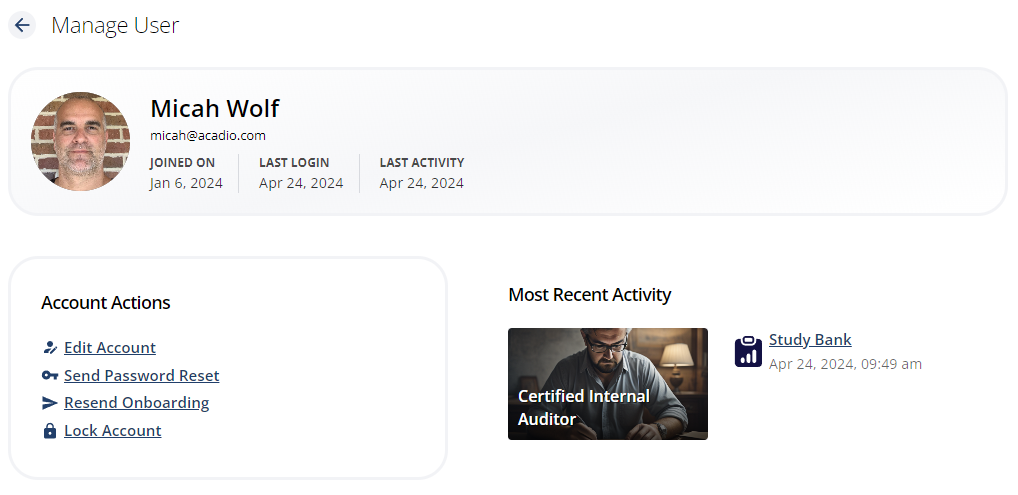
Account Actions
Edit account - Edit a user’s first or last name, email address, and display name
Reset password - Send an email containing a secure link that allows the user to reset their password. Administrators cannot see or change passwords on user accounts
Resend onboarding - Send an email containing a secure link that allows new users to complete the account creation process. Onboarding is mandatory for each new Acadio user and cannot be bypassed by admins
Lock account - Disable user access to the platform. Login credentials will not permit access to the platform until an admin unlocks the account
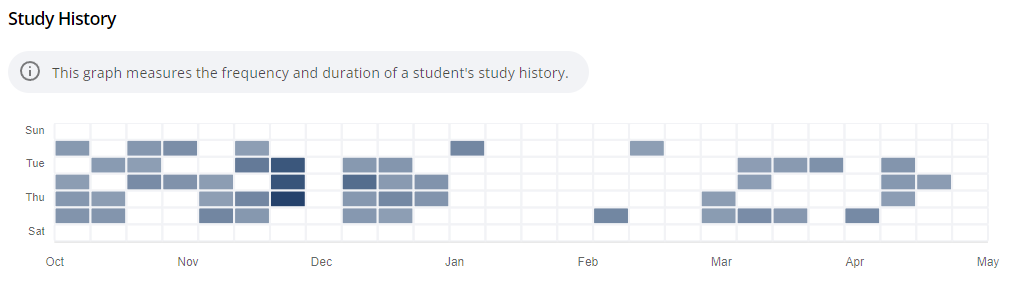
Study History
The heatmap displays all user activity on the platform and across courses. Darker shades indicate heavier usage.
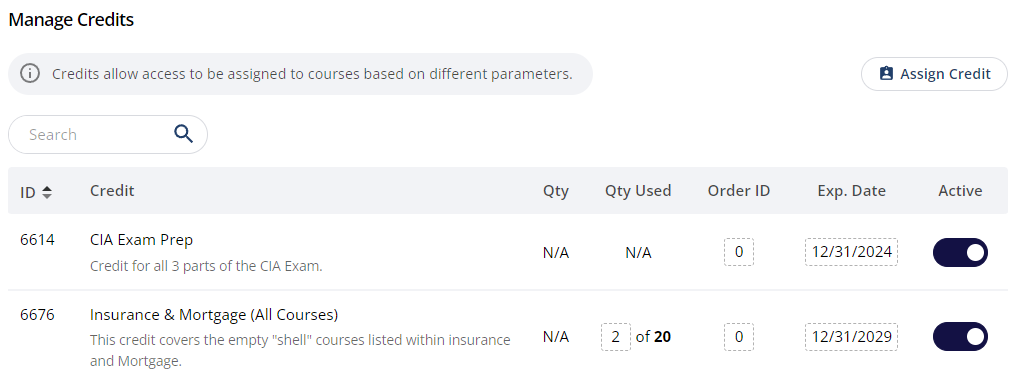
Manage Credits
Lists all credits assigned to this user. New credits can be assigned to a user by clicking the Assign Credit button. Credits can also be assigned to users from the Manage Student screen when in course scope.
Additional user management tools are available in the drawer on the right side of the screen:
Courses - View all courses a user can access. Jump to a course-level view of the student by selecting a course from this list
Groups - Controls platform permissions
Direct message - Sends the user a direct message on the platform
Community posts - View all community posts from the user
Devices - View all devices the account has used to access the platform
Reporting history - View all course completions reported to an organization and access certificates of completion
You must view a student within the course scope to see detailed course activity. To do this, click the Courses tab in the drawer and select a course from the list. Then, click Students.