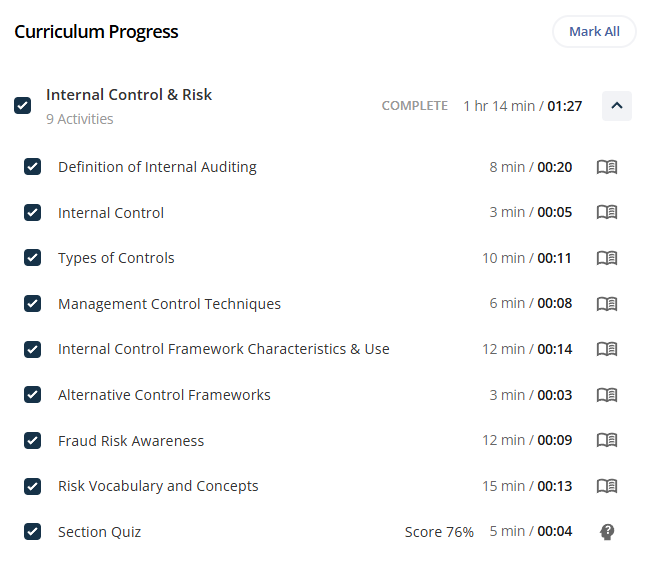

When linear progression is enabled and activity times are enforced, a student must view the activity for the required time before the platform marks it complete. When linear progression is disabled (default setting), activities are automatically marked complete after being viewed.
There may be situations when an administrator must manually mark an activity complete for a student.
Follow the steps below to manually mark an activity complete:
Navigate to the course and select Students from the course menu.
Use the search bar to find the student by name or email address.
Select the student from the results list to view the Manage Student screen.
Under Curriculum Progress, click the checkbox next to an activity or section to mark it complete, or use the Mark All button at the top to mark all activities in the curriculum. Completed activities can also be marked incomplete this way.