

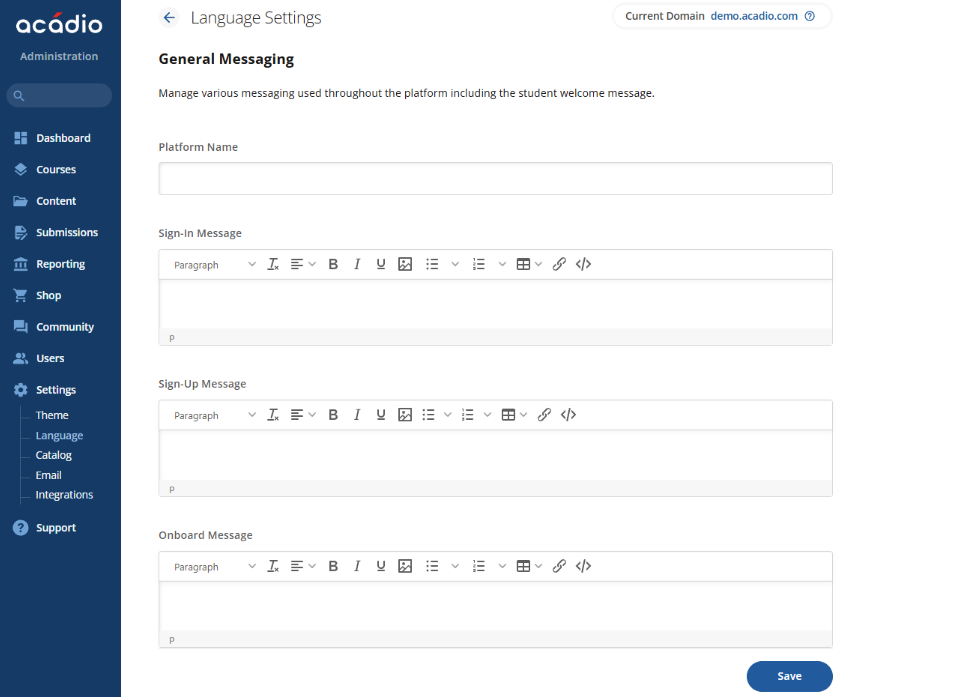
Under General Messaging, you can edit the platform name, sign-in message, sign-up message, and onboarding message. Each option can be updated by clicking into the text box, entering your changes, and then clicking Save to make them live.
Platform Name
The platform name can be changed under General Messaging and controls the name shown in the user’s browser tab next to the Favicon. It is best practice to keep the name short and to the point.
Sign in Message
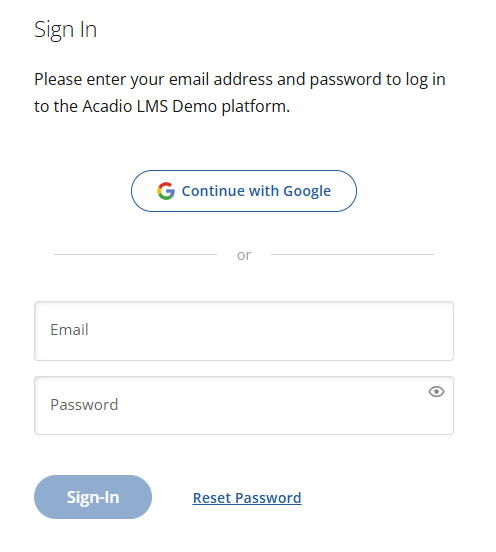
You can customize the message displayed to students on the login page. This message is shown every time a student logs in and can be used to share important information or tips for the page.
An example message would be shown in the image below

Once you have written your message and clicked Save, it will appear on the sign-in page above the email and password fields.
Onboard Message
This allows you to customize the message that is displayed to a new student on the welcome page. A student will only see this message after hitting the link in their onboarding email that takes them to their account set up.
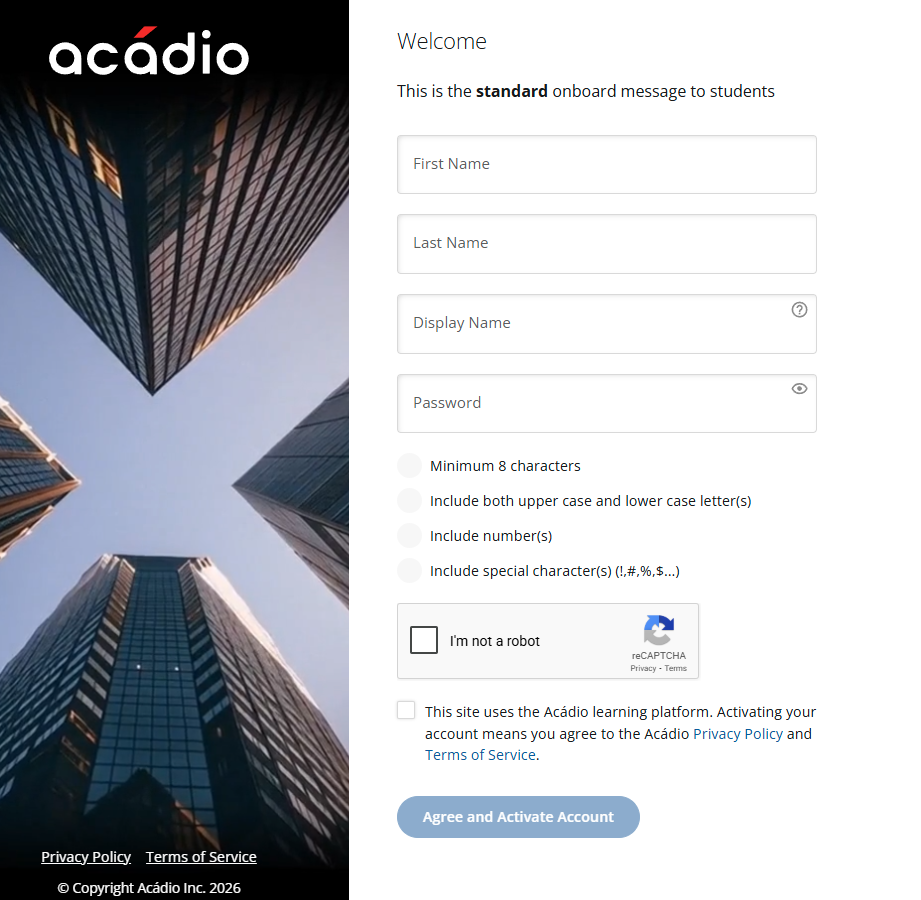
To update this message, enter your text in the Onboard Message field, then click Save to apply your changes.
