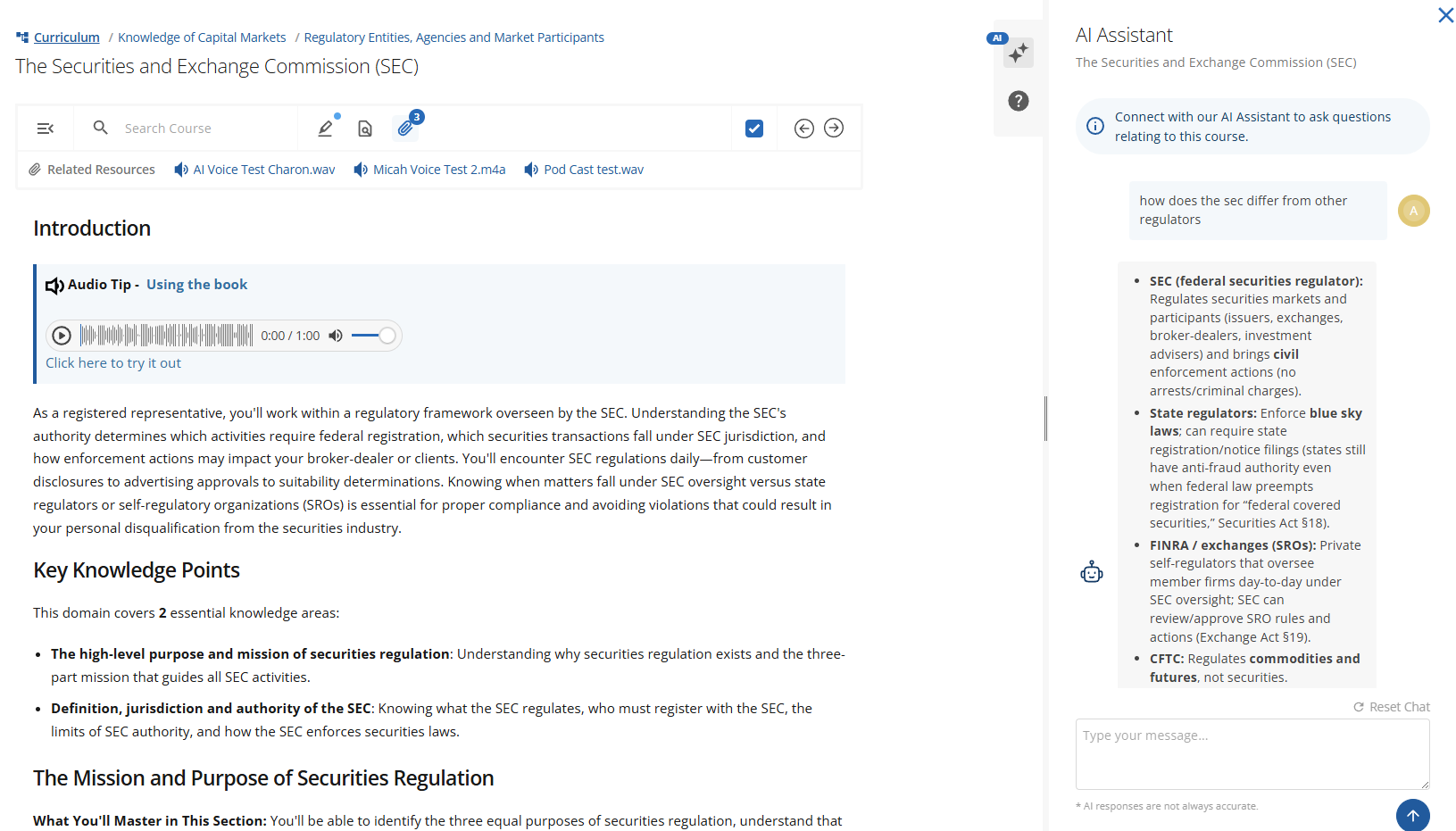

The AI Assistant connects your ChatGPT account to courses through the AI tutor app, giving students an AI-powered tutor inside the course drawer. You define its persona at the platform level and add subject-matter context at the course level. When students ask questions, Acadio automatically sends relevant page content (textbook pages and questions) to the AI.
The AI Tutor can also answer questions on other content activity types, but the context provided must be more precise and clearly describe what the student is seeing. Without detailed context, the AI will not be able to answer questions effectively for these activity types:
Video
SCORM
Webinar
Link
PDF
Custom
IMPORTANT: Before activating the AI Tutor app you will want to visit: OpenAI. Here you will need to create and preload an account with tokens to connect to. Please do your own cost analysis, however we found chats can cost around 2 cents each once the tutor is active and supporting learners.
Setup
1. Activate the Integration
Go to Settings > Integrations, locate the ChatGPT card, and click Install (if inactive) or Manage (if active).
2. Configure Platform Settings
Under Settings > Integrations > ChatGPT:
Select the Default Model (GPT-5.2, GPT-5.2 Pro, GPT-5, or GPT-5 Mini).
Write Default Instructions to define the AI’s role, tone, and guardrails. This is where you'll want to set up the overall persona of the AI tutor.
Optionally save reusable prompts in the Prompt Library.
Click Save when finished.
3. Add Course Context
Open a course, go to APPS > AI Assistant, and enter course-specific details such as exam type, topic areas, scope, and study approach. Click Save.
4. Configure page content
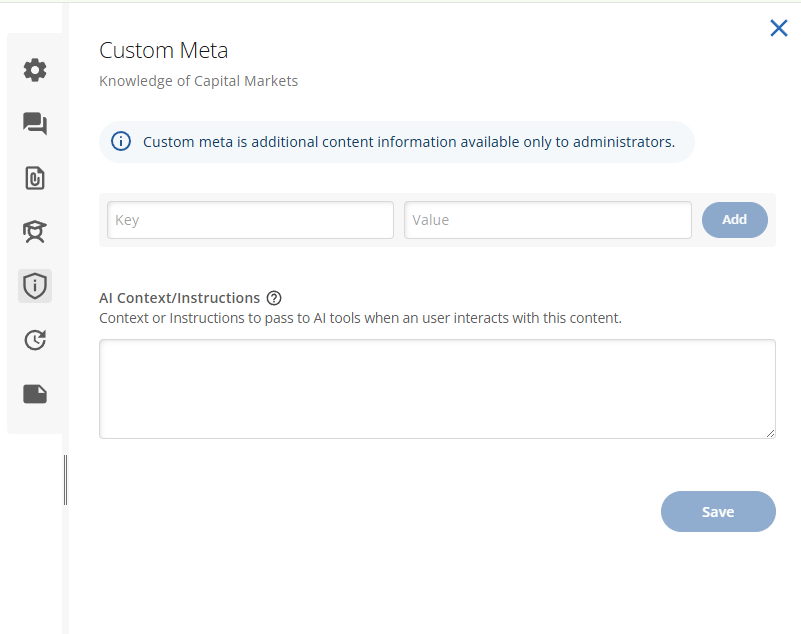
To configure page content, go to the Curriculum, select the activity you’d like to add context to, and click the shield icon on the right side of the screen labeled Custom Meta. From there, you can add your AI context.
This will primarily be used for book and video activities and should provide a concise overview of the content on the current page. Each key idea should be explained in one to two sentences, focusing on the most important information. You should also consider common questions users may have about the content and include additional information or resources that the AI will use to answer their questions.
How Context Works
When a student asks a question, the AI receives:
Platform Default Instructions
Course Context
Current Page/Content Context
This ensures responses are personalized to the platform rules, course subject, and the exact page the student is viewing. If you are having errors in content accuracy you may need to revise your context or change the AI model you are on.
Student Experience
Students click the AI icon in the top-right corner of a course page to open a slide-out drawer where they can type questions. The AI responds based on the combined platform, course, and page context. Responses are helpful study aids but may not always be fully accurate.