
Course Structure
The curriculum serves as a roadmap for learners and consists of the activities that must be completed to complete the course successfully.
Use sections to organize your content into lessons or to group it by topic. Sections may contain related activities such as reading, videos, quizzes, etc., and can be used similarly to chapters or modules in a textbook.
Sections can also be nested within other sections (i.e., subsections), creating a multi-level course structure. However, most courses only require a single-level (no sections) or 2-level structure (sections containing only activities). Below are examples of different course structures, with and without sections:
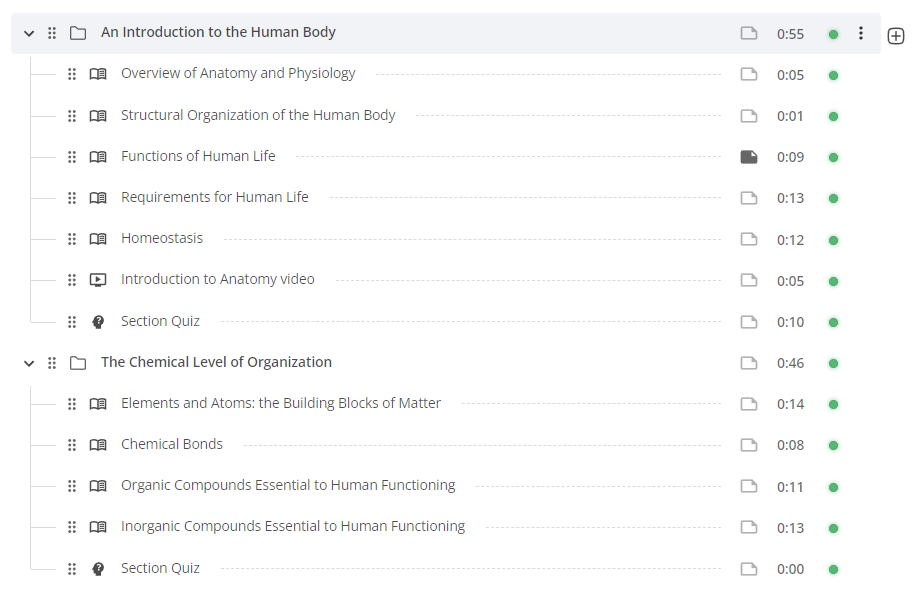
Above is an example of a 2-level course structure.
Activities are grouped into sections based on subjects/topics.
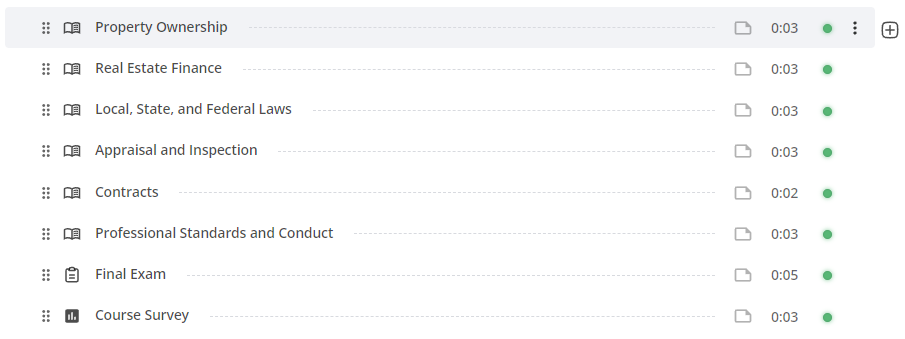
Above is an example of a single-level course structure.
All activities are at the top level of the course and are not grouped into sections.
Adding items to the curriculum
Follow the steps below to start building your course curriculum:
Navigate to the course you'd like to build.
Select Curriculum from the course menu.
Select the first item to add to the curriculum. Depending on your planned course structure, this can be a section or an activity.
Name the item. Double-click the activity icon to edit the activity and add content.
When the activity is ready, click Save to create a draft or Publish to make the content live.
Use the + buttons to create additional activities or sections. The + at the bottom of the curriculum will add new items to the end of the course. The + to the right of a selected activity or section will create a new item below the currently selected item or within the currently selected section.
Moving sections or activities
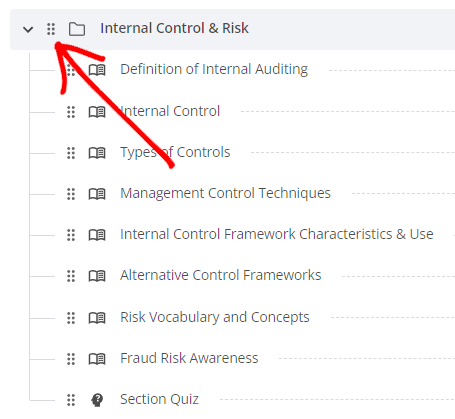
Sections and activities can be moved by clicking the "grippy dots" to the left of each item and dragging it to the desired position.
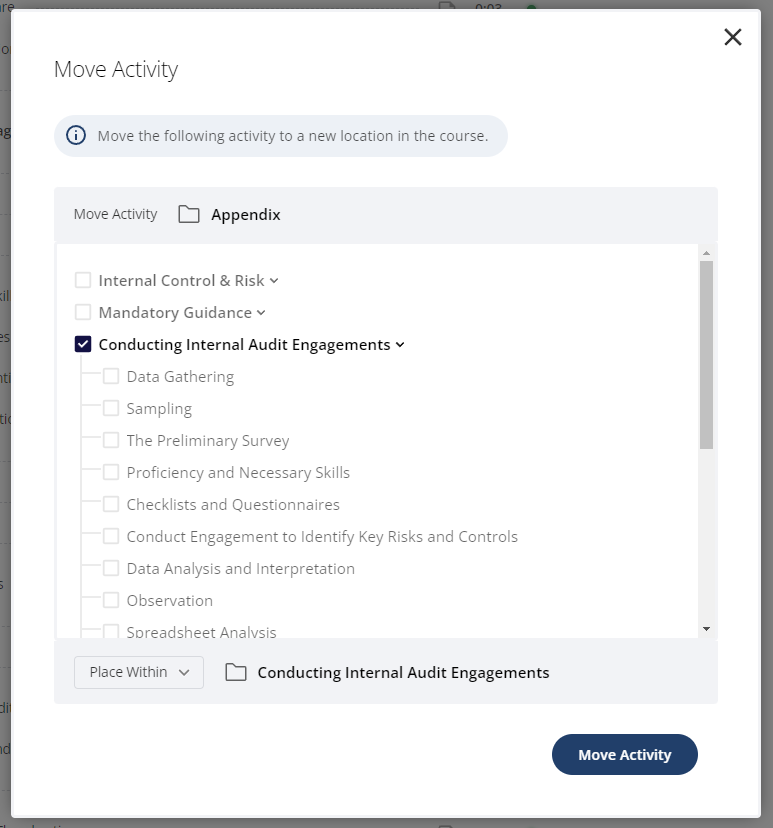
Additionally, you can click the three dots to the far right of each item and select Move from the drop-down menu for more precise control.
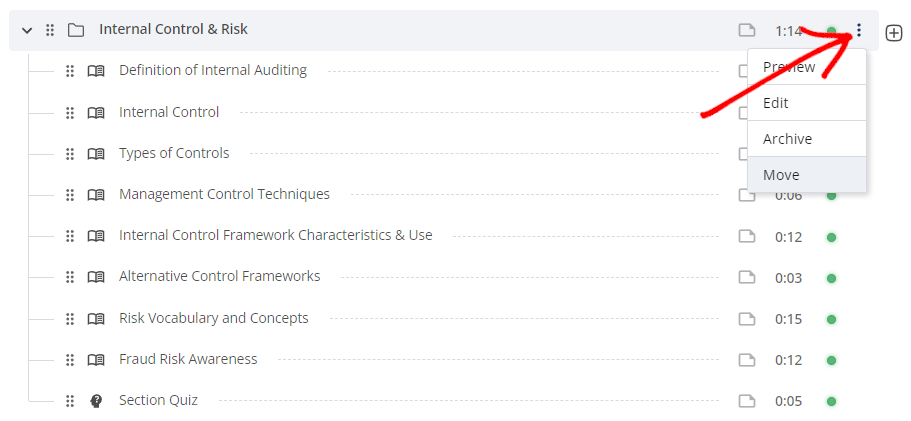
This tool is especially helpful when working with larger curriculums that require scrolling or moving large sections. Use the drop-down selector at the bottom of the modal to place items below other items, above other items, or within other sections.