
Access to activities can be delayed based on the time since the last activity was completed or since the course was started. This functionality can be helpful in meeting regulatory requirements related to time spent in the course. Activities with a delay enabled will remain locked until the specified time has elapsed.
Note: Linear Progression must be enabled for Activity Delay to function. This can be enabled in the course Settings > Options > Course Experience.
Follow the steps below to enable activity delay on an activity.
Navigate to the activity you wish to edit.
Select Activity Options from the drawer on the right side of the screen.
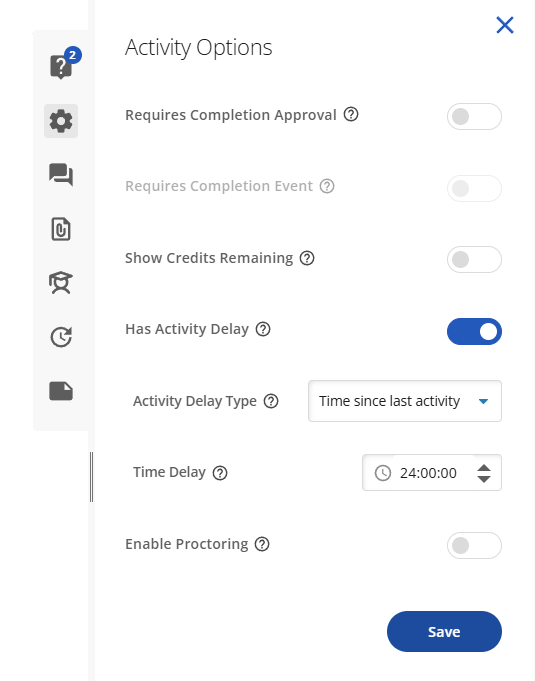
Enable the Has Activity Delay toggle.
Select an Activity Delay Type:
Time since last activity
Time since course start
Enter the desired Time Delay in hours, minutes, and seconds (e.g. 24:00:00 for a 24-hour delay.)
When finished, click the Save button.
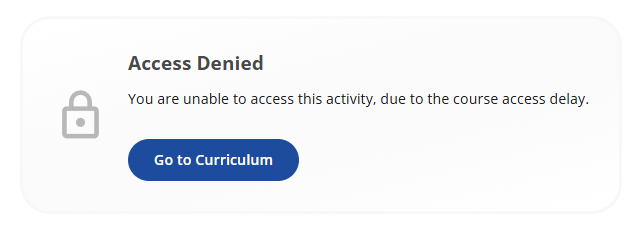
Below is an example of what students will see when an activity is unavailable due to a configured delay. When accessed before the required delay threshold is met, these activities will display an Access Denied notification to students.