

Community moderators can comment on, reply to, edit, remove posts, and permanently delete posts. Please note, users must have Admin rights with Discussion Admin access to moderate community content.
Follow the steps below to take action on a community post:
Navigate to the course and select Community from the course menu. Community posts from all courses can also be managed outside of the course scope by selecting Community on the main menu.
Use the filter in the taskbar to narrow down the types of posts you’d like to see. Moderators can filter posts tagged as Unanswered, Feedback, or Potential Error.
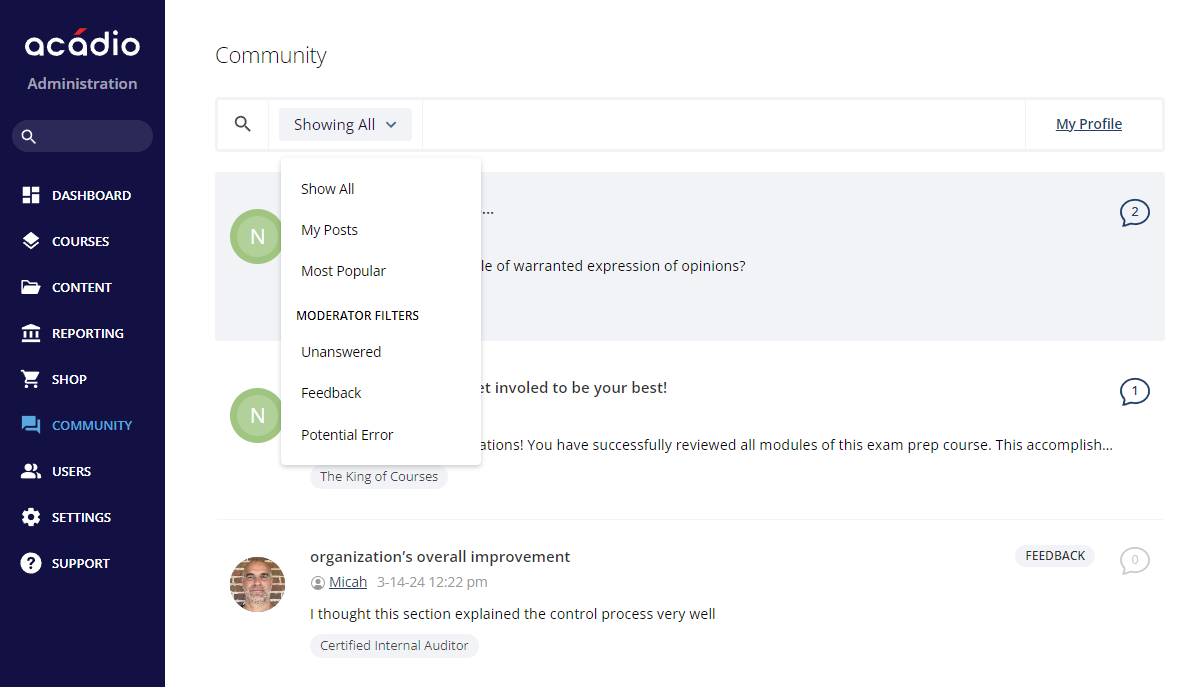
Select the post you’d like to take action on.
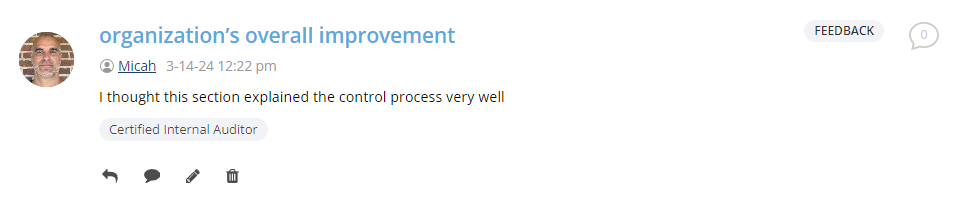
Select an action using the icons below the post: Reply, Comment, Edit, or Delete.
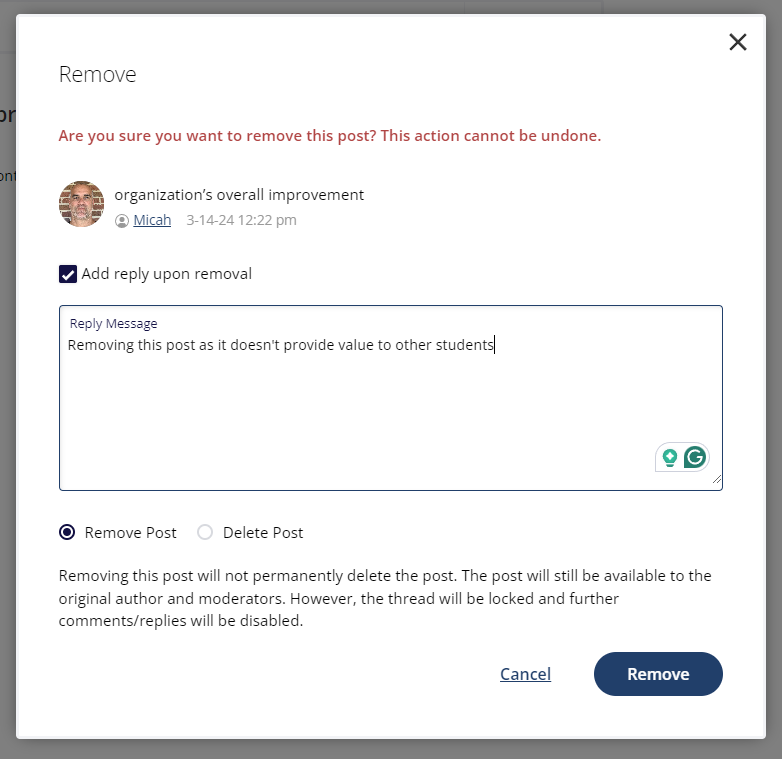
If you don’t want the post to be visible to other students, you can remove or delete it by clicking the trashcan icon. Removing the post makes it invisible to other students, but the post author and moderators will still be able to see it. Deleting the post will permanently remove the post for all users.
Additionally, moderators can make a post “sticky” by selecting Edit. “Sticky” posts are pinned to the top of the first page of results to increase visibility.