

While the Activity Share allows activities shared with multiple courses, the Import feature allows activities to be easily replicated from other courses, creating a new, branched version of the content. This means that any changes to an imported activity do not affect other instances of the content.
Follow the steps below to import activities from other courses:
Navigate to the course you wish to build and select Curriculum from the course navigation.
Select Import from another course from the toolbar at the top.
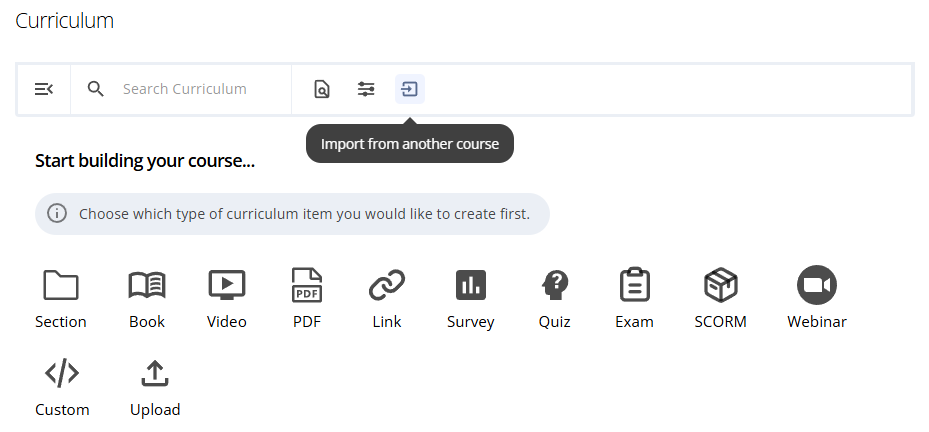
Click into the Search field and begin typing the name of the course from which you wish to import activities.
Select the course from the list of results. This will display the selected course's curriculum in the modal window.
Use the checkboxes to select individual sections or activities to import, or click the Select All link above the Curriculum items displayed to import all selected sections and activities.
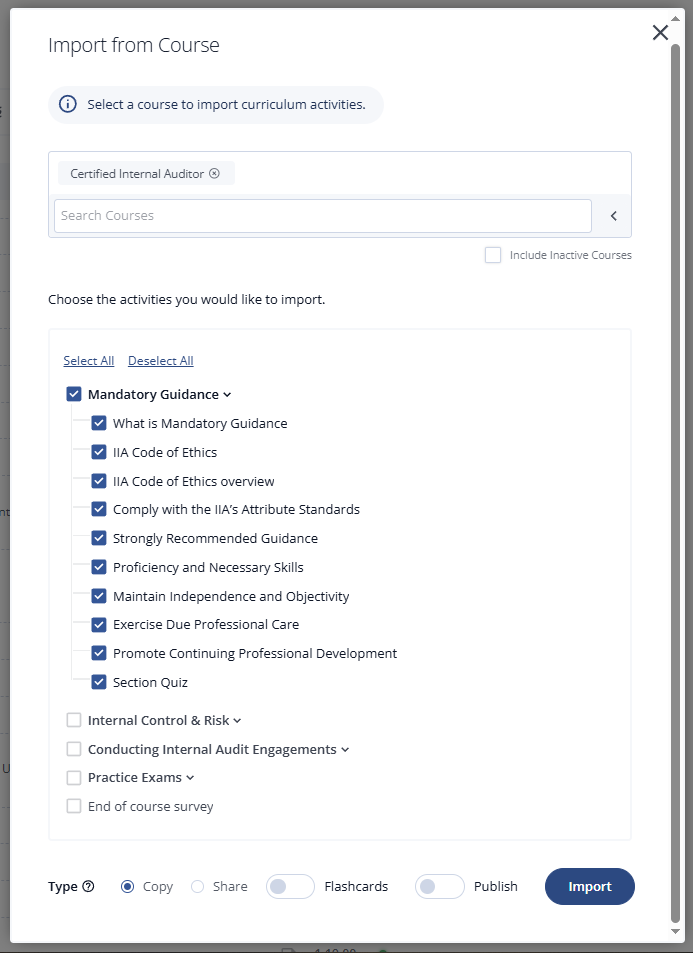
If you want to publish these activities immediately, enable the Publish toggle at the bottom of the window. If this toggle is disabled, you will need to publish each activity individually after import.
When finished, click the Import button to add the selected items to the curriculum.
Importing Shared Activities
You can also select Share to import activities with activity sharing enabled. This keeps the content linked to the original course, allowing it to be managed from a single source. For more information on how activity sharing works, click here.
Importing Flashcards
By toggling Flashcards, you can import flashcards associated with course activities into a new course. This is useful when importing courses with flashcards mapped to content that you want to preserve.
Note: Flashcards will only be imported if they are connected to the selected activity.