

While most setups use an integration between Acadio and an e-commerce solution to handle credit assignment, admins can also assign credits manually. This can be done when creating a new user, inviting a user to a course, or from the Manage Users area of the platform.
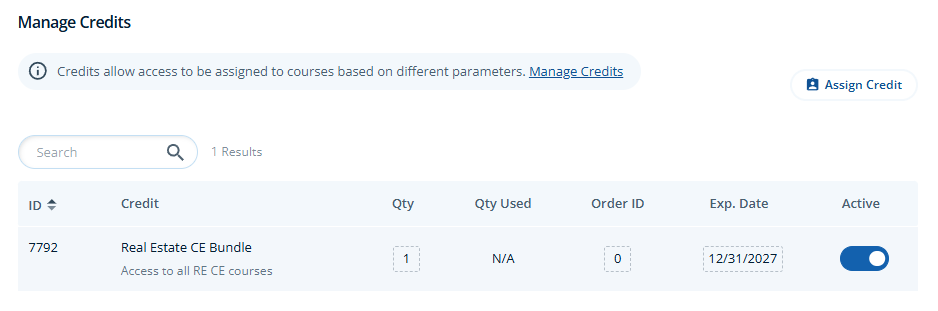
Follow the steps below to assign a credit to a user from the Manage Users area:
Select Users>Users from the main menu.
Use the search bar to find the user by name or email address.
Select the user from the results list to view additional user management options.
Scroll down to the Manage Credits section.
Click the Assign Credit button.
Search for and select the credit you wish to assign.
If you need to override the default credit expiration (this is not typical), select the date by clicking on the Expiration field. Additionally, you can enter an order ID to be associated with this credit assignment in the Order ID field.
When finished, click the Save button.