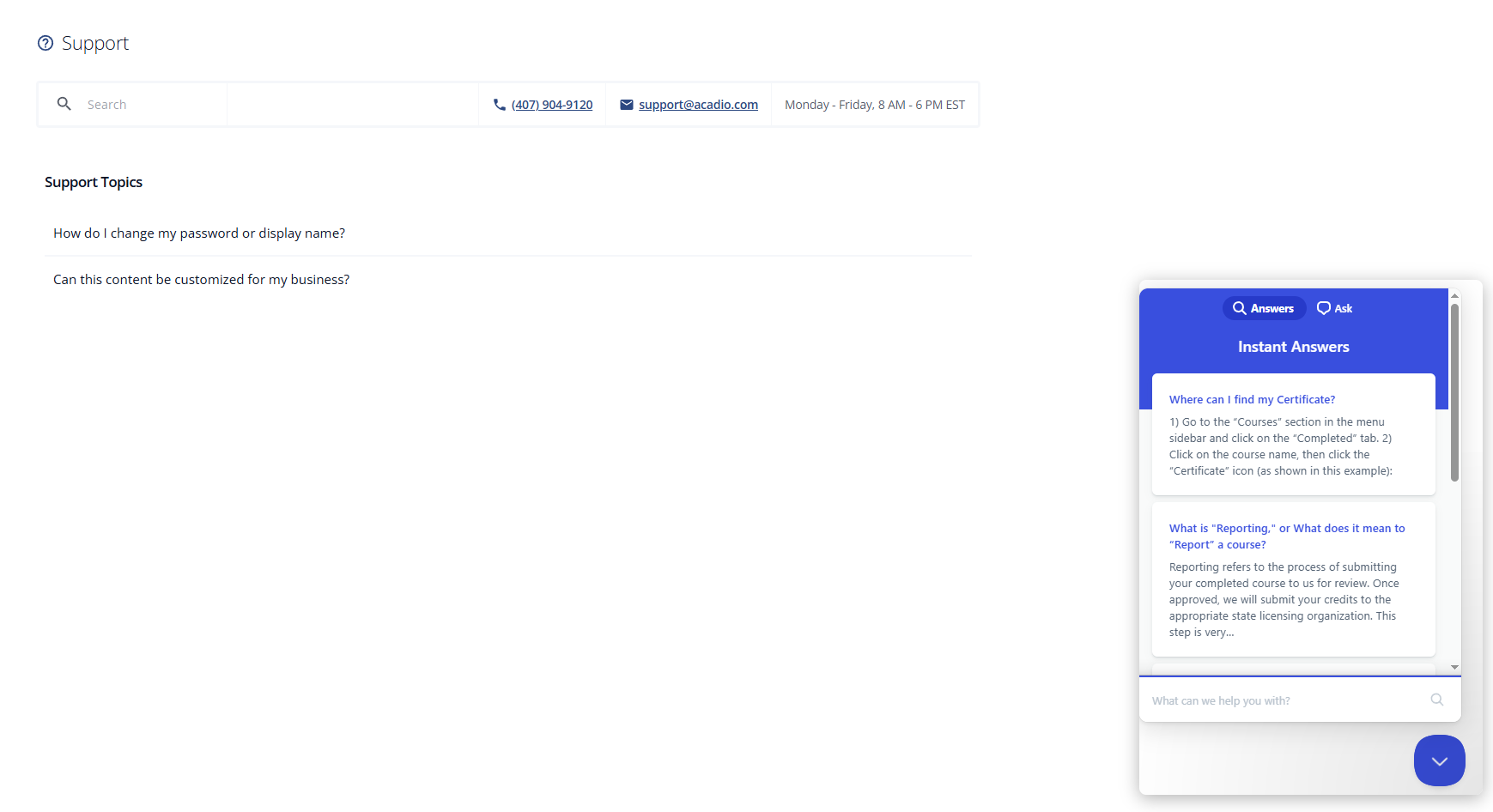

The support area of the platform is a place students can go to view FAQs.
Follow the steps below to edit the existing FAQs or add new content:
Select Settings from the main navigation menu and then select Messaging & Language.
Select Student Support from the options listed.
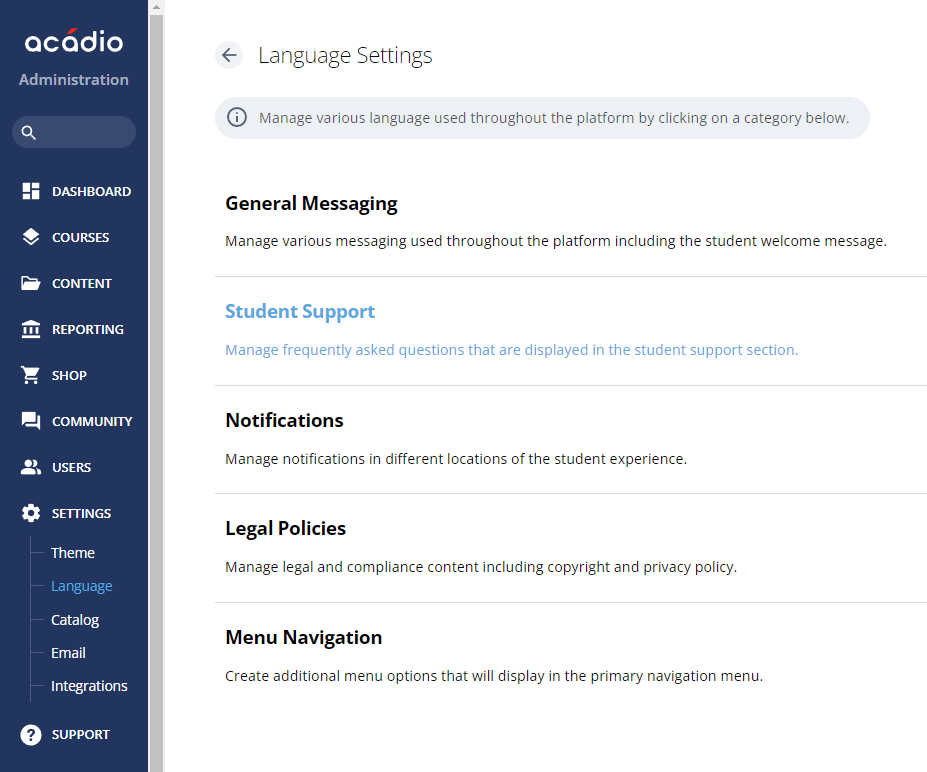
Enter your organization's support hours, phone number, and email address.
Under Support Topics, enter the topic or question in the Topic Title field. Then, enter the answer or additional information in the text area below it. Media, including video, images, and links to external websites or resources, can be added to the text area.
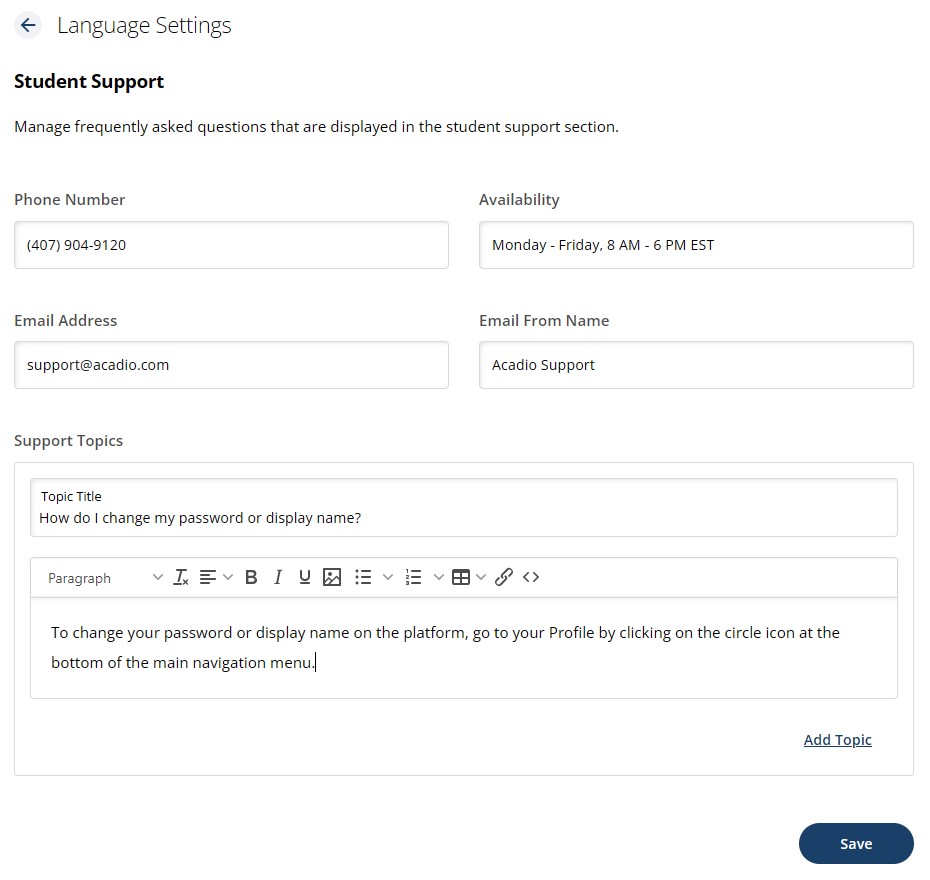
To add another FAQ, click the Add Topic link.
When finished, click the Save button.
Support Widget
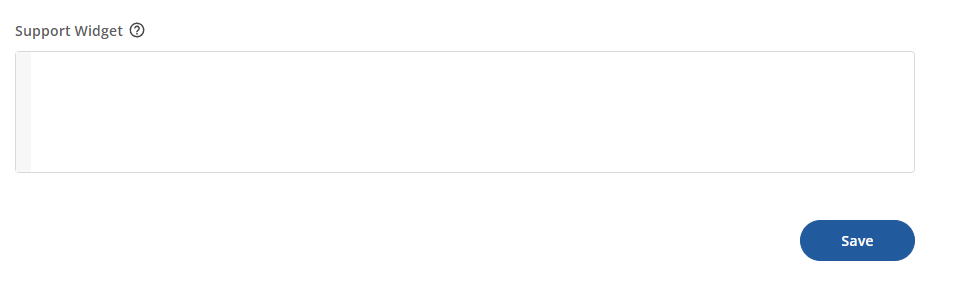
The Support Widget allows you to add a third-party customer support tool to the student support page by pasting an embed script provided by the service. To configure it, paste your widget’s embed script into the Support Widget field.
Some examples of this would be:
Live chat widgets (e.g., Intercom, Tawk.to, Drift)
Help desk or ticket systems (e.g., Zendesk, Freshdesk, Zoho)
This lets you integrate external support tools without modifying the site’s code, simply by pasting the widget script.
This is a basic example of what the support widget could look like: